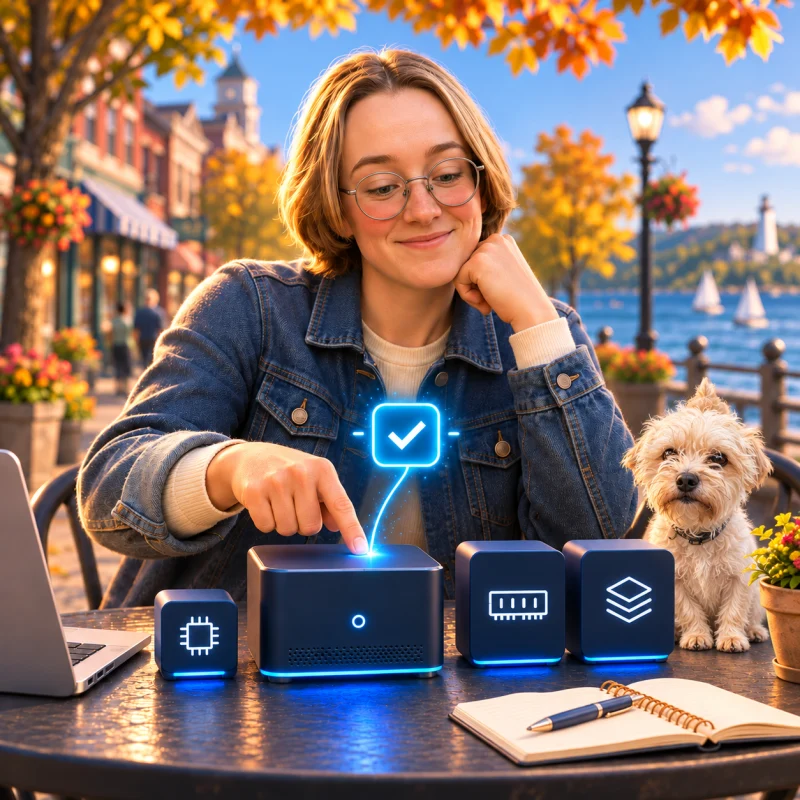
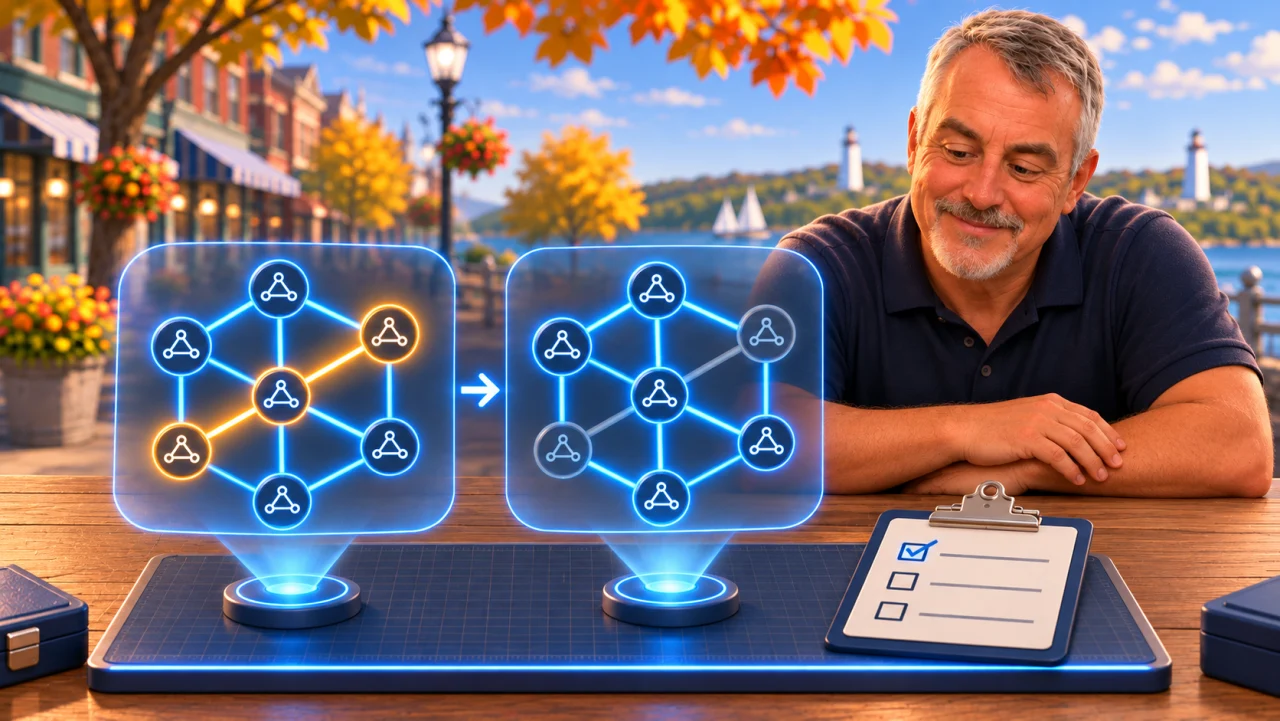
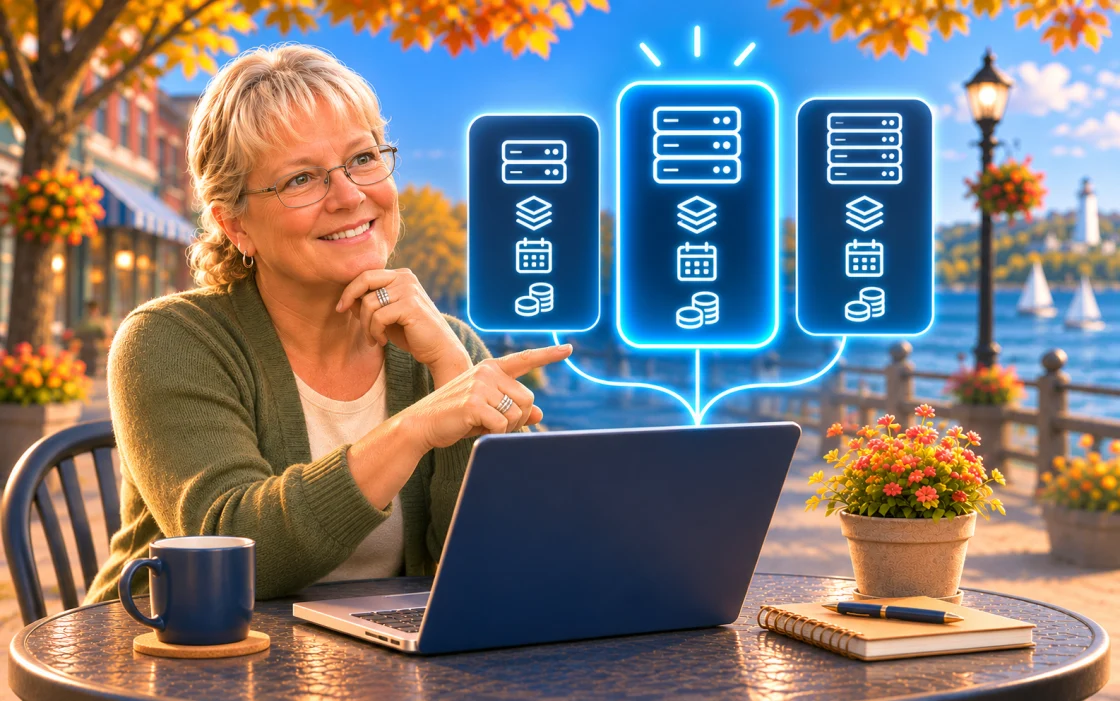
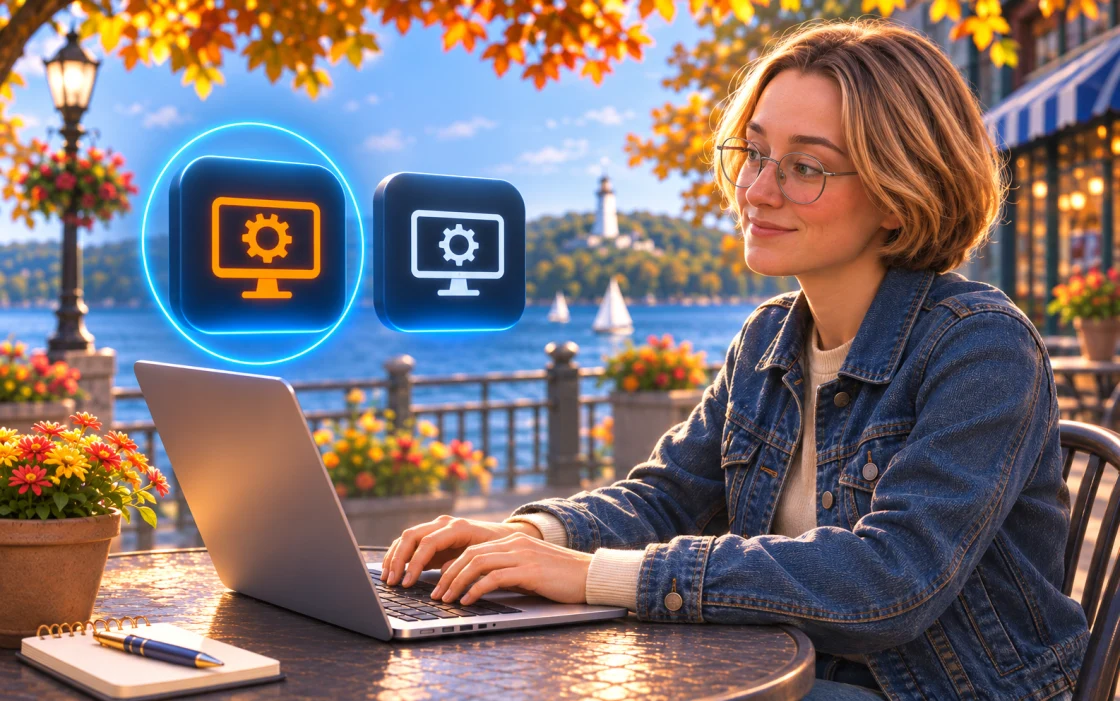
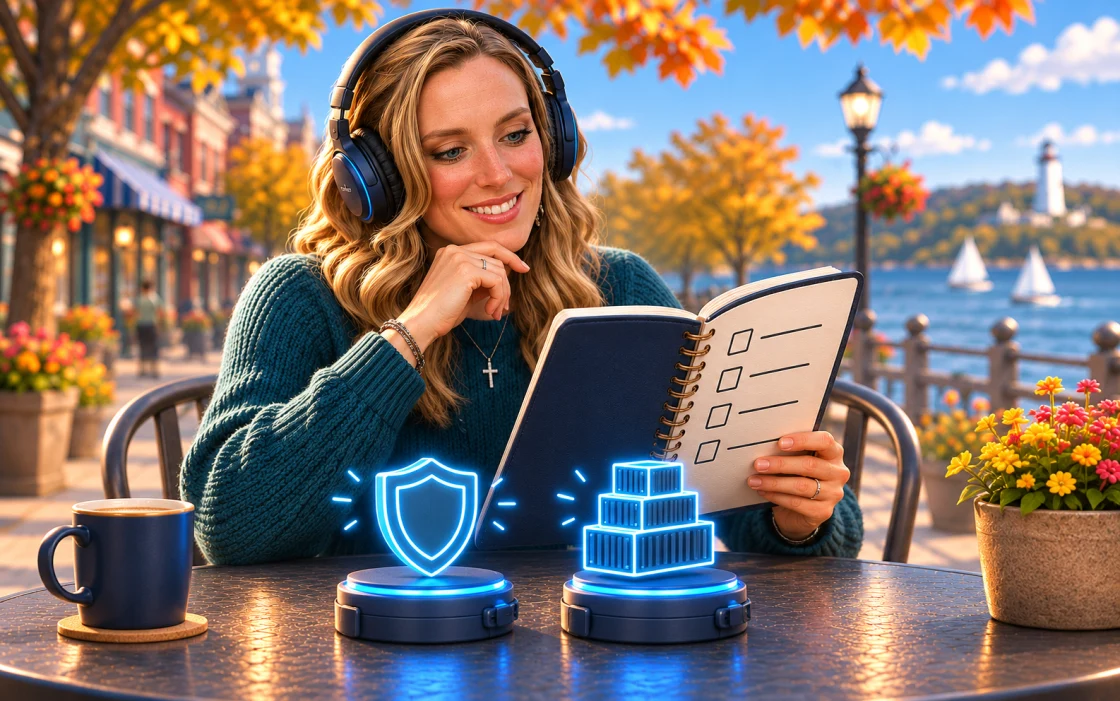
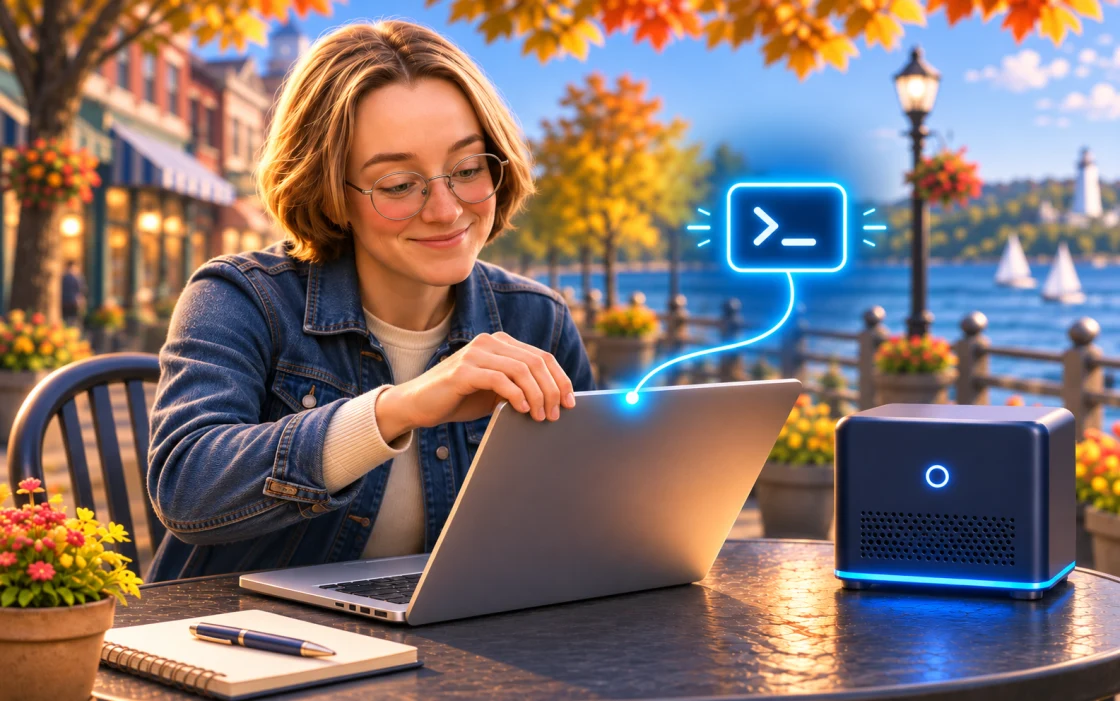
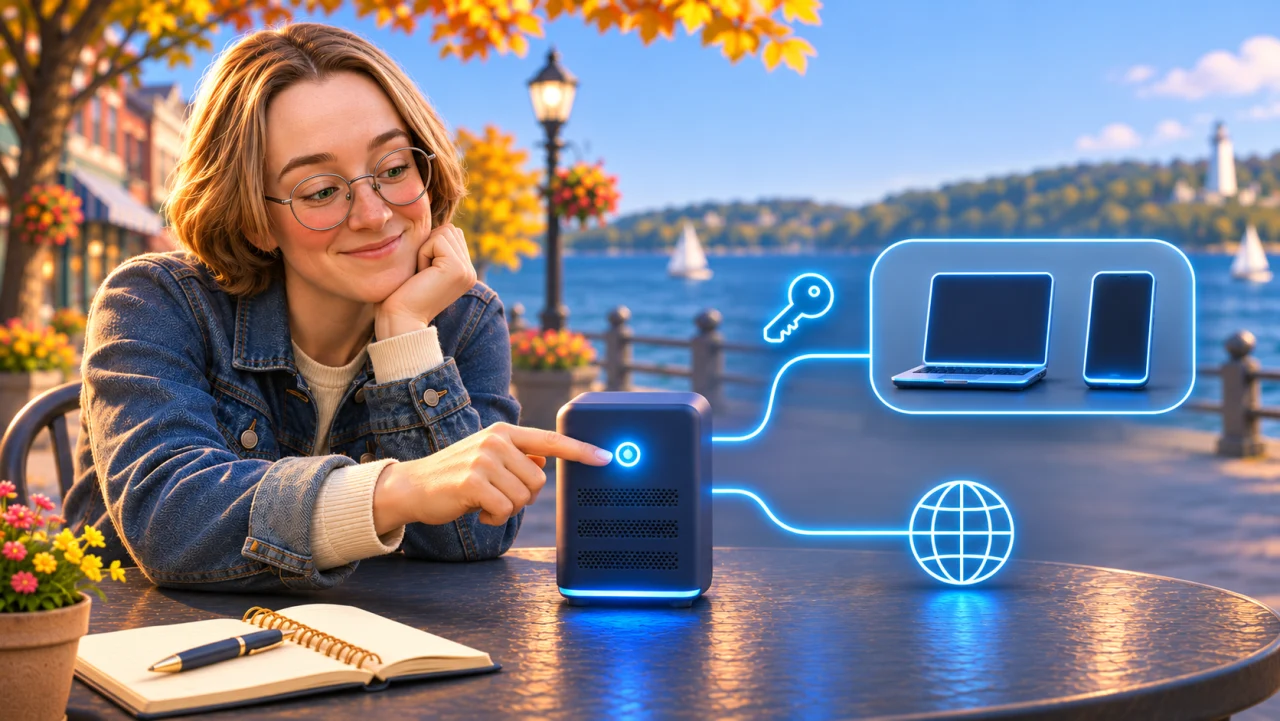
One consistent visual story: start with a useful task, choose the right setup, try it carefully, then make it work where you work. These named slots connect the guide to a complete image-production brief.
24 finished images14 editorial illustrations10 setup concepts26 placements in the guide
The CNERD AI direction
The CNERD Family appears in the warm 3D animated style of the first post. Reuse each character’s established likeness, clothing palette, and labeled pet references across scenes.
Electric blue · #146EF5Deep navy · #081B35White · #FFFFFF
Provider marks are separate page assets. Each setup concept illustrates the task. Use the capture brief when a real walkthrough screenshot becomes available.
A home for the ongoing series
Recommendation: a Learn hub on the main CNERD.AI website, with a repeatable CNERD AI Field Guides format. Keep each episode useful on its own and connected to the next practical step.
1. A stable library
Proposed hub: /learn/. Proposed first guide: /learn/local-ai/. Group future guides by the job they help solve, with difficulty, prerequisites, and a clear outcome.
2. YouTube companions
When a CNERD video is ready, place a full-width 16:9 player first, with the readable introduction below. Follow with chapter links, steps, copyable prompts, image captions, troubleshooting, and a checked-on date.
3. A useful next step
End with the related service, a consultation link, and the next guide. Add the owned community channel when it exists. Keep channel, subscribe, and community links unlinked until their real destinations are supplied.
These are proposed routes and an editorial structure, not a published navigation change. The guide should be the maintained reference; the video introduces it and points viewers back to updated steps.
How to use this workbook: copy an illustration prompt into ChatGPT’s image creator. For a setup screen, first capture the real interface and remove private data; then use the supplied annotation prompt. Do not generate fake settings, prices, terminal output, or success evidence. Use the matching image ID to find the art or the pending screenshot brief.
C01
Pick the right AI for your work
Navigation card: Pick your model

1:1 · Original illustration
Cast: Mike with Nixie
The story
Start with the job and hardware, then choose the model.
Mike compares three model cards inside his workshop while Nixie looks in through the window.

Current hosting plan selection and checkout, with private details removed.
Capture checklist
Capture the current Hostinger plan selection and checkout in an authorized session reached from https://www.hostinger.com?REFERRALCODE=1JXZMIKEAHUE. Show the selected VPS plan, billing term, renewal information, and total only if they are actually visible. Use the plan chosen for the final CNERD walkthrough. Do not complete a purchase. Remove account details, addresses, payment data, and unrelated tracking identifiers before preparing the image. Do not invent a discount, coupon, price, or referral confirmation.
Operating-system selector showing the Ubuntu release used for this walkthrough.
Capture checklist
Capture the current Hostinger operating-system selector during the approved setup. Show the actual Ubuntu LTS release selected for the walkthrough and enough surrounding UI to locate the choice. Preserve the exact version and labels shown; do not assume a release number or draw a fictional menu. Mask account identifiers and server details.
C12
Set up server access safely
Remote setup: Access credentials
16:10 · Setup concept
Cast: Mike · Concept illustration · Genuine screenshot pending
The story
Show where access is configured without ever displaying a real secret.
A current access setup panel with all password, key, and identity values fully concealed.
Server-access setup fields with all credentials and identifying details removed.
Capture checklist
Capture the current server-access setup screen in the approved environment. Show only the relevant field labels and supported sign-in choices. Passwords, SSH private keys, public-key comments identifying a person, recovery codes, account details, and generated secrets must be fully removed with opaque redaction before the image is shared or edited. Never reveal an existing password for the screenshot. Do not imply that one authentication option is selected unless it is actually part of the final walkthrough.
Current optional server features and their selected states.
Capture checklist
Capture the current optional-features panel in Hostinger, preserving the actual names, selected states, and visible pricing information. Highlight only the options used in the final CNERD walkthrough. Do not describe an option as free or required unless that is confirmed by the current screen and supporting documentation. Remove account and server identifiers.
C14
Confirm the server is ready
Remote setup: VPS ready state
16:10 · Setup concept
Cast: Mike · Concept illustration · Genuine screenshot pending
The story
Give the learner an observable completion checkpoint.
The actual ready state after provisioning an approved server.
A provisioned server’s actual ready state with identifying details removed.
Capture checklist
Capture the actual server-ready or active state after the approved VPS has finished provisioning. Include enough of the page to show the management action. Conceal IP addresses, hostnames, account details, and any credentials. Do not synthesize a success state or make an unfinished setup look complete.
Server overview with the browser-console action identified.
Capture checklist
Capture the current VPS overview containing the actual browser-console control used in the walkthrough. Mask server IPs, hostnames, account identity, usage values if private, and credential controls. Add one small electric blue outline and a numbered marker near the console action without covering its actual label. Do not invent button text or move interface elements.
Official Tailscale download page with the walkthrough’s platform indicated.
Capture checklist
Capture the official Tailscale download page for the operating system used in the final walkthrough. Preserve current platform labels and the real download action. Use one electric blue annotation to point to the relevant platform. If the guide supports Mac and Windows, create and label a separate genuine capture for each; do not combine incompatible screens into a fictional UI. Avoid showing browser account details.
The operating system’s actual VPN configuration permission prompt.
Capture checklist
Capture the genuine system VPN configuration permission dialog on the platform used for the walkthrough. Preserve the exact application identity, permission wording, and button labels. Remove private background windows and identity details before any external editing. Present it as a permission choice, not as automatic approval; do not fabricate a dialog for a different platform or alter its warning text.
A genuine terminal prompt showing where to enter the next command.
Capture checklist
Capture a genuine terminal session from the walkthrough at the command-entry point. Redact hostnames, IPs, usernames if identifying, command history with secrets, and tokens. Preserve actual visible command syntax and output. Add one small electric blue marker outside the text area to identify the prompt. Do not generate successful command output or hide an error to make the setup appear complete.
The actual verified connection result with authentication links and identities removed.
Capture checklist
Capture the actual successful connection result from the approved Tailscale setup. Confirm the result before capturing. Completely redact login URLs, one-time authentication links, tokens, device names, tailnet names, user identities, and IPs. Preserve the real success wording and enough context to understand it. If the setup has not succeeded, keep the placeholder instead of generating a success image.
C20
Understand the desk-bound workflow
Article: Why remote access helps
16:9 · Original illustration
Cast: Monica with Dylan
The story
Introduce a real business need for leaving the desk.
A useful task is waiting at a desktop while its owner reviews work from another location.